12 KiB
Executable File
Backend setup
SkyWalking's backend distribution package consists of the following parts:
-
bin/cmd scripts: Located in the
/binfolder. Includes startup linux shell and Windows cmd scripts for the backend server and UI startup. -
Backend config: Located in the
/configfolder. Includes settings files of the backend, which are:application.ymllog4j.xmlalarm-settings.yml
-
Libraries of backend: Located in the
/oap-libsfolder. All dependencies of the backend can be found in it. -
Webapp env: Located in the
webappfolder. UI frontend jar file can be found here, together with itswebapp.ymlsetting file.
Requirements and default settings
Requirement: JDK8 to JDK12 are tested. Other versions are not tested and may or may not work.
Before you start, you should know that the main purpose of quickstart is to help you obtain a basic configuration for previews/demo. Performance and long-term running are not our goals.
For production/QA/tests environments, see Backend and UI deployment documents.
You can use bin/startup.sh (or cmd) to start up the backend and UI with their default settings, set out as follows:
- Backend storage uses H2 by default (for an easier start)
- Backend listens on
0.0.0.0/11800for gRPC APIs and0.0.0.0/12800for HTTP REST APIs.
In Java, DotNetCore, Node.js, and Istio agents/probes, you should set the gRPC service address to ip/host:11800, and ip/host should be where your backend is.
- UI listens on
8080port and request127.0.0.1/12800to run a GraphQL query.
Interaction
Before deploying Skywalking in your distributed environment, you should learn about how agents/probes, the backend, and the UI communicate with each other:
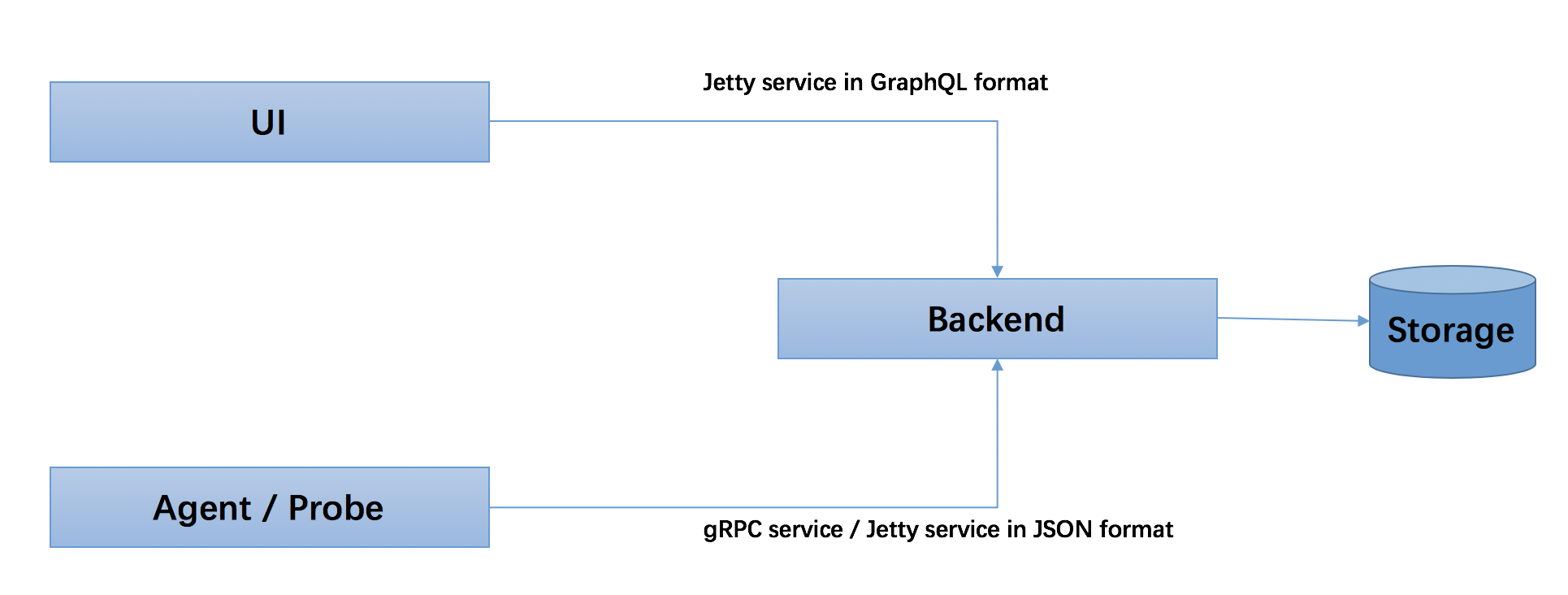
- All native agents and probes, either language based or mesh probe, use the gRPC service (
core/default/gRPC*inapplication.yml) to report data to the backend. Also, the Jetty service is supported in JSON format. - UI uses GraphQL (HTTP) query to access the backend also in Jetty service (
core/default/rest*inapplication.yml).
Startup script
The default startup scripts are /bin/oapService.sh(.bat).
Read the start up mode document to learn about other ways to start up the backend.
application.yml
SkyWalking backend startup behaviours are driven by config/application.yml.
Understanding the setting file will help you read this document.
The core concept behind this setting file is that the SkyWalking collector is based on pure modular design.
End users can switch or assemble the collector features according to their own requirements.
In application.yml, there are three levels.
- Level 1: Module name. This means that this module is active in running mode.
- Level 2: Provider option list and provider selector. Available providers are listed here with a selector to indicate which one will actually take effect. If there is only one provider listed, the
selectoris optional and can be omitted. - Level 3. Settings of the provider.
Example:
storage:
  selector: mysql # the mysql storage will actually be activated, while the h2 storage takes no effect
  h2:
    driver: ${SW_STORAGE_H2_DRIVER:org.h2.jdbcx.JdbcDataSource}
    url: ${SW_STORAGE_H2_URL:jdbc:h2:mem:skywalking-oap-db}
    user: ${SW_STORAGE_H2_USER:sa}
    metadataQueryMaxSize: ${SW_STORAGE_H2_QUERY_MAX_SIZE:5000}
  mysql:
    properties:
      jdbcUrl: ${SW_JDBC_URL:"jdbc:mysql://localhost:3306/swtest"}
      dataSource.user: ${SW_DATA_SOURCE_USER:root}
      dataSource.password: ${SW_DATA_SOURCE_PASSWORD:root@1234}
      dataSource.cachePrepStmts: ${SW_DATA_SOURCE_CACHE_PREP_STMTS:true}
      dataSource.prepStmtCacheSize: ${SW_DATA_SOURCE_PREP_STMT_CACHE_SQL_SIZE:250}
      dataSource.prepStmtCacheSqlLimit: ${SW_DATA_SOURCE_PREP_STMT_CACHE_SQL_LIMIT:2048}
      dataSource.useServerPrepStmts: ${SW_DATA_SOURCE_USE_SERVER_PREP_STMTS:true}
    metadataQueryMaxSize: ${SW_STORAGE_MYSQL_QUERY_MAX_SIZE:5000}
  # other configurations
storageis the module.selectorselects one out of all providers listed below. The unselected ones take no effect as if they were deleted.defaultis the default implementor of the core module.driver,url, ...metadataQueryMaxSizeare all setting items of the implementor.
At the same time, there are two types of modules: required and optional. The required modules provide the skeleton of the backend.
Even though their modular design supports pluggability, removing those modules does not serve any purpose. For optional modules, some of them have
a provider implementation called none, meaning that it only provides a shell with no actual logic, typically such as telemetry.
Setting - to the selector means that this whole module will be excluded at runtime.
We advise against trying to change the APIs of those modules, unless you understand the SkyWalking project and its codes very well.
The required modules are listed here:
- Core. Provides the basic and major skeleton of all data analysis and stream dispatch.
- Cluster. Manages multiple backend instances in a cluster, which could provide high throughputs process capabilities.
- Storage. Makes the analysis result persistent.
- Query. Provides query interfaces to UI.
Cluster and Storage have provided multiple implementors (providers). See Cluster management and Choose storage documents in the link list.
Several receiver modules are also provided.
Receiver is the module in charge of accepting incoming data requests to the backend. They usually provide
services by some network (RPC) protocols, such as gRPC and HTTPRestful.
The receivers have many different module names. You could
read the set receivers document in the link list.
Configuration Vocabulary
All available configurations in application.yml could be found in Configuration Vocabulary.
Advanced feature document link list
After understanding the setting file structure, you may learn more about the advanced features. You may read the advanced feature documents in the following order.
- Overriding settings in application.yml are supported.
- IP and port setting. Introduces how IP and port are set and used.
- Backend init mode startup. How to initialize the environment and exit graciously. Read this before you try to initialize a new cluster.
- Cluster management. Guides you on how to set the backend server in cluster mode.
- Deploy in kubernetes. Guides you on how to build and use the SkyWalking image, and deploy in k8s.
- Choose storage. As we know, in default quick start, the backend is running with H2 DB. But clearly, it doesn't fit the product env. Here you may find out about the other options available to you. We also welcome anyone to contribute a new storage implementor.
- Set receivers. You may choose receivers according to your requirements. Most receivers are harmless, including our default receivers. You may set and activate all receivers provided.
- Open fetchers. You may open different fetchers to read metrics from target applications. These ones work like receivers, except that they are in pull mode. A typical example is Prometheus.
- Token authentication. You may add token authentication mechanisms to prevent
OAPfrom receiving untrusted data. - Run trace sampling at the backend. This sample keeps the metrics accurate, although some of the traces in storage are not saved based on rate.
- Follow slow DB statement threshold config document to learn about how to detect the Slow database statements (including SQL statements) in your system.
- Official OAL scripts. As you have seen from our OAL introduction, most backend analysis capabilities are based on scripts. Here is a detailed description of the official scripts, which helps you understand which metrics data are in process, and which could be used in alarm.
- Alarm. Alarm provides a time-series based check mechanism. You may set alarm rules targeting the analysis oal metrics objects.
- Advanced deployment options. If you want to deploy backend in very large scale and support high payload, you may need this.
- Metrics exporter. Use metrics data exporter to forward metrics data to 3rd party systems.
- Time To Live (TTL). Since metrics and trace are time series data, TTL settings affect their expiration time.
- Dynamic Configuration. Configure the OAP to dynamic from remote service or 3rd party configuration management systems.
- Uninstrumented Gateways. Configure gateways/proxies that are not supported by SkyWalking agent plugins to reflect the delegation in topology graph.
- Apdex threshold. Configure the thresholds for different services if Apdex calculation is activated in the OAL.
- Service Grouping. An automatic grouping mechanism for all services based on name.
- Group Parameterized Endpoints. Configure the grouping rules for parameterized endpoints to improve the meaning of the metrics.
- OpenTelemetry Metrics Analysis. Activate built-in configurations to convert the metrics forwarded from OpenTelemetry collector, and learn how to write your own conversion rules.
- Meter Analysis. Set up the backend analysis rules when using SkyWalking Meter System Toolkit or meter plugins.
- Spring Sleuth Metrics Analysis. Configure the agent and backend to receiver metrics from micrometer.
- Log Analyzer
Telemetry for backend
The OAP backend cluster itself is a distributed streaming process system. To assist the Ops team, we provide the telemetry for the OAP backend itself. Follow the document to use it.
At the same time, we provide Health Check to get a score for the health status.
0 means healthy, and more than 0 means unhealthy. less than 0 means that the OAP doesn't start up.
FAQs
Why do we need to set the timezone? And when do we do it?
SkyWalking provides downsampling time series metrics features. Query and store at each time dimension (minute, hour, day, month metrics indexes) related to timezone when time formatting.
For example, metrics time will be formatted like YYYYMMDDHHmm in minute dimension metrics, which is timezone related.
By default, SkyWalking's OAP backend chooses the OS default timezone. If you want to override it, please follow the Java and OS documents.
How to query the storage directly from a 3rd party tool?
SkyWalking provides different options based on browser UI, CLI and GraphQL to support extensions. But some users may want to query data directly from the storage. For example, in the case of ElasticSearch, Kibana is a great tool for doing this.
By default, in order to reduce memory, network and storage space usages, SkyWalking saves based64-encoded ID(s) only in metrics entities. But these tools usually don't support nested query, and are not convenient to work with. For these exceptional reasons, SkyWalking provides a config to add all necessary name column(s) into the final metrics entities with ID as a trade-off.
Take a look at core/default/activeExtraModelColumns config in the application.yaml, and set it as true to enable this feature.
Note that this feature is simply for 3rd party integration and doesn't provide any new features to native SkyWalking use cases.